SSLmarket customer account management
SSLmarket customer administration is used to record orders and issued SSL/TLS certificates, to manage them and for related tasks. You will find complete information about the certificate, an overview of resolved orders, expiring certificates and you can also download your certificate here. This article provides basic help for working with an SSLmarket account.
Login to administration
Login to administration
Login to SSLmarket administration takes place at sslmarket.co.uk and sslmarket.com depending on the branch where your account was created. If you cannot log in to SSLmarket, you may be logging in at the wrong branch. If you forget your password, we can send you a new one. If you do not know your login ID (customer number) or email address, do not hesitate to contact customer support.
Account management - editing data
If you need to change or edit the data on your customer account, click on Settings in the customer administration top bar. Click the pencil icon to bring up a dialog to edit your billing or personal information. After editing, click Save and enter the edited information in the system.
Setting up e-mail communication
In the Newsletter section, which is in the top bar, you can set up notifications from the SSLmarket system. Information about certificate expiration is very important. You can have this information sent to the authorization and technical contact specified in the certificate order. An authorization contact is usually a person who has been listed in the certificate order as a company employee designated for telephone verification by an authority. A technical contact is a person who has received a certificate by e-mail.
If you do not want your customer to receive the information about certificate expiration from SSLmarket, you can turn off the option to send expiration information to the authorization contact.
List and management of orders
On the introductory page of your administration (Overview), in the Orders section, SSL certificate orders currently being resolved, and their current status is displayed. When done, the orders are moved to the Active certificates section, where you will find all currently valid certificates. In the Unpaid orders section, there are unpaid and pending orders. Click on the magnifying glass icon to get to the order detail.
Public Key Entry (CSR)
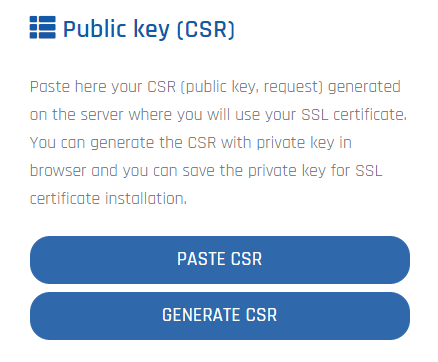
After ordering a certificate, it is necessary to create a public key (CSR request) for the certification authority, which will generate a new certificate based on this. You can enter the public key (CSR request) in the order detail by clicking on Paste CSR. After inserting it, you will see the information contained in it. All CSR requests for the TLS/SSL certificates must have a bit depth of minimal 2048 bits, for the Code Signing certificates of 3072 bits.
If you do not have the option to create a CSR on your server or obtain it from your hosting, our Generate CSR tool is available to you.
How to renew
After logging into SSLmarket administration, you will see the Expiring certificates section on the introductory page. Click on the magnifying glass symbol to open the certificate detail and use the Make renew button to create a Renew order. Just check and possibly edit the previous order’s data and confirm the renewal.
Payment options
In the Unpaid orders section, click on a specific order to select the desired payment method. To speed up the certificate order, we recommend using online payment by card or PayPal. Using both options, payment is accepted immediately, and you can have Domain Verification (DV) certificates issued within minutes. If you choose to pay online, you will be redirected to a secure payment gateway. After confirming the payment, you will return to SSLmarket administration and see if the payment was successful. Of course, you also have payment details to pay by bank transfer.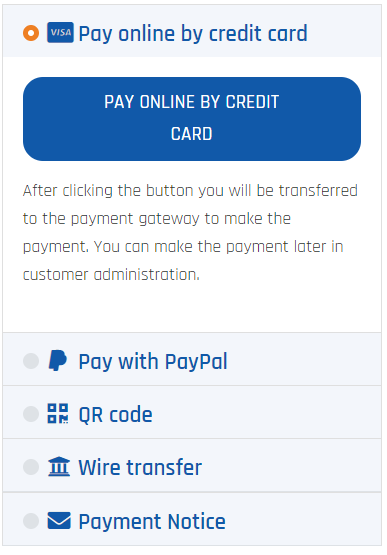
Managing active certificates
Possibility to download the certificate from administration
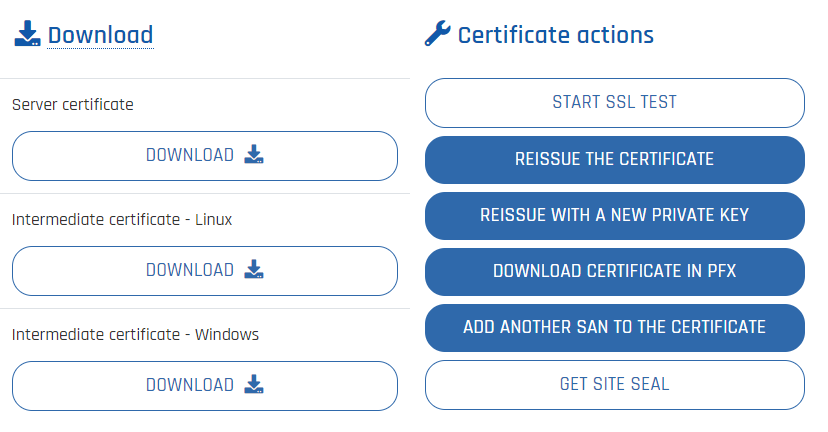
We will send you the issued certificate by e-mail, so you find it easily. The certificate is sent in text form and is encoded in Base64 format. However, you can conveniently download your certificate from our administration in the certificate details.
Possibility to reissue the certificate and create a PFX
Use the Reissue certificate function to request a free reissuance of your certificate with existing keys. Alternatively, you can delete the original CSR offered and insert a new one from your server. If you want to create a new key pair with us, click on Reissue with a new private key. You can also download the certificate in PFX in Certificate actions. All you need to do is enter the certificate’s private key and enter the password.Possibility to test the installation’s correctness
Proper certificate installation is the key to its trustworthiness for your visitors. You can find the option to check the installation in the order detail, in the section Certificate actions. Clicking the Start SSL/TLS test link will take you to a test page where you can test the correctness of the installation.
If intermediate certificates are missing from the server, the certificate will not be trusted for visitors and will display a security warning .
Authorized customer support request
If you need to tell us something or have questions, do not hesitate to use the Support link in the top administration bar. Here you will find the option to send an authorized request.
If necessary, do not hesitate to contact our customer support.

We are sorry that you did not find the required information here.
Please help us to improve this article. Write us what you have expected and not found out.