SSLmarket application for Windows
SSLmarket for Windows allows you to easily manage the certificates in your SSLmarket account and install them in your system's store.
Principle of application and possibilities of use
SSLmarket for Windows desktop is used to connect your SSLmarket customer account to your desktop. Thanks to this, you can easily create certificate requests, add them to the order and then easily install the certificate in the system. You can also reissue certificates in the application.
The application’s main goal is to save time and work for the certificate holder when creating a CSR request and when installing the certificate after its issuance. These are the most time-consuming tasks that the certificate owner must perform and are also the most demanding in terms of orientation in PKI issues.
All communication between SSLmarket and the application takes place via API in real time, so you always see the current information in the application. However, you can also update it manually.
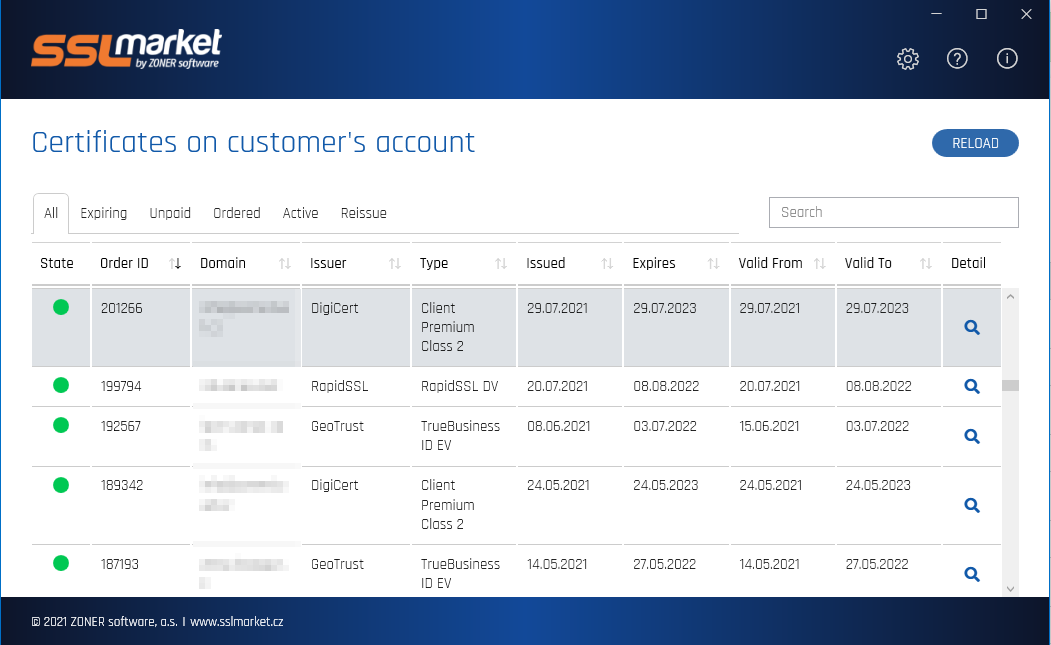
Using the application and certificate store
To link the application with an SSLmarket account, you need to enable API access on your customer account and generate the same API key. Then insert it into the Windows application and that is enough for the connection. You do not need a username or password.
You will find the same certificate agendas in the application as on the SSLmarket website. However, you can perform selected actions with orders and certificates:
- order update; creation, and CSR insertion
- certificate download (in the general sense)
- downloading the certificate to the system store
- installing the certificate in the system store (to the existing private key)
The application runs "above" your Windows certificate store.
The Windows certificate store maintains a list of certificates that can be used by a particular user and the entire computer (server). The repository is therefore divided into two parts, and you can import certificates into both.
It is a fact, that:
- Personal S/MIME certificates must be stored in the User account.
- Server certificates (issued for domains) must be stored in the machine's storage (Computer account), otherwise the server cannot use them.
SSLmarket installs certificates in both to avoid possible problems.
Installing an S/MIME certificate and settings in Outlook
With version 1.1.0 we added a new feature that will save you a lot of time. If you have ordered an S/MIME certificate from SSLmarket, you can easily create a CSR using the SSLmarket application and send it directly to the order via the API. As soon as the certificate is issued, you can install it in the system using the application. The application will also ask if you want to set up this certificate in Outlook for signing messages.
If you confirm the dialogue, the S/MIME certificate will be set in Outlook as the default certificate for signing and you can start sending signed emails. A prerequisite for successful installation is, of course, that the sender's email matches the email address specified in the S/MIME certificate.
SSLmarket has been successfully tested with Outlook 2019, 2016, 2013 and 2010.
Creation and management of ACME access and its usage
SSLmarket version 1.5.0 supports creating ACME credentials for certificate issuance. These credentials are stored in the application similar to passwords in a password manager. Use these ACME credentials to request certificates directly.
Creation and management of ACME credentials
In the SSLmarket application, you can create and manage ACME credentials for CA DigiCert. The process mirrors the creation of ACME credentials in a customer account via the web, where the secret is visible only once and then hidden. Use the application to manage various ACME credentials for better clarity.
ACME credentials are unique to the choice of organization, certificate type, and validity period. You can also name them for better distinction.
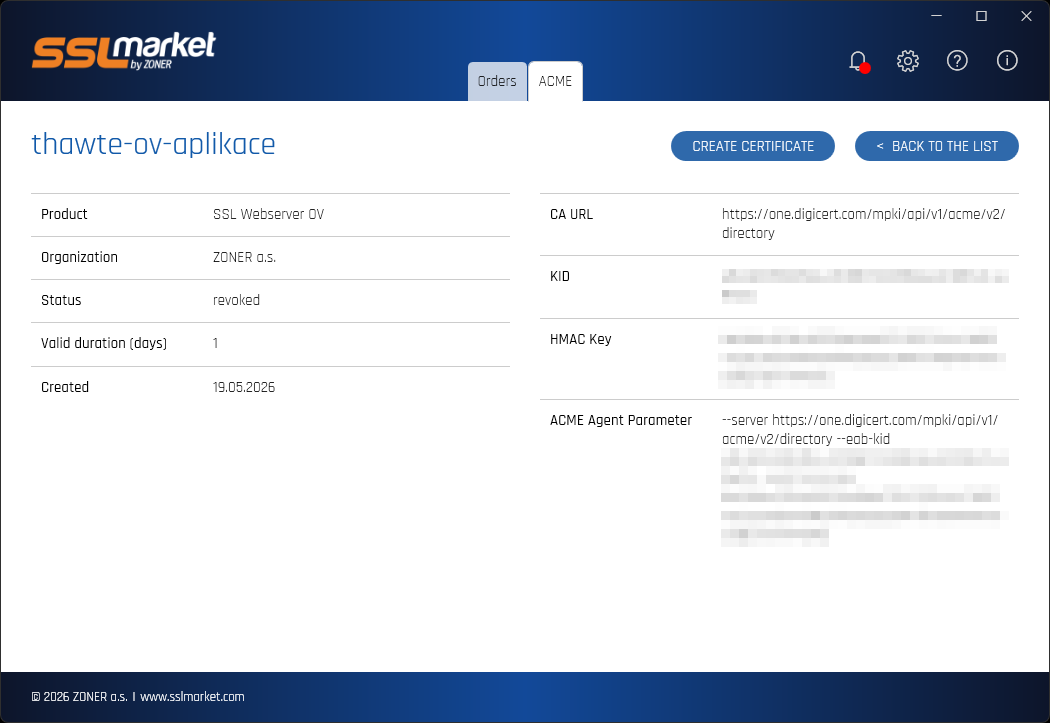
Issuance of certificates via ACME
Use SSLmarket for manual certificate issuance via ACME protocol. In ACME access details, use Create Certificate, for ad-hoc manual request. Domain Control Validation (DCV) requires DNS verification and DNS record creation via API. Choose from three registrars supporting DNS record API:
- CZECHIA.COM (Zoner)
- Google Cloud DNS
- Cloudflare
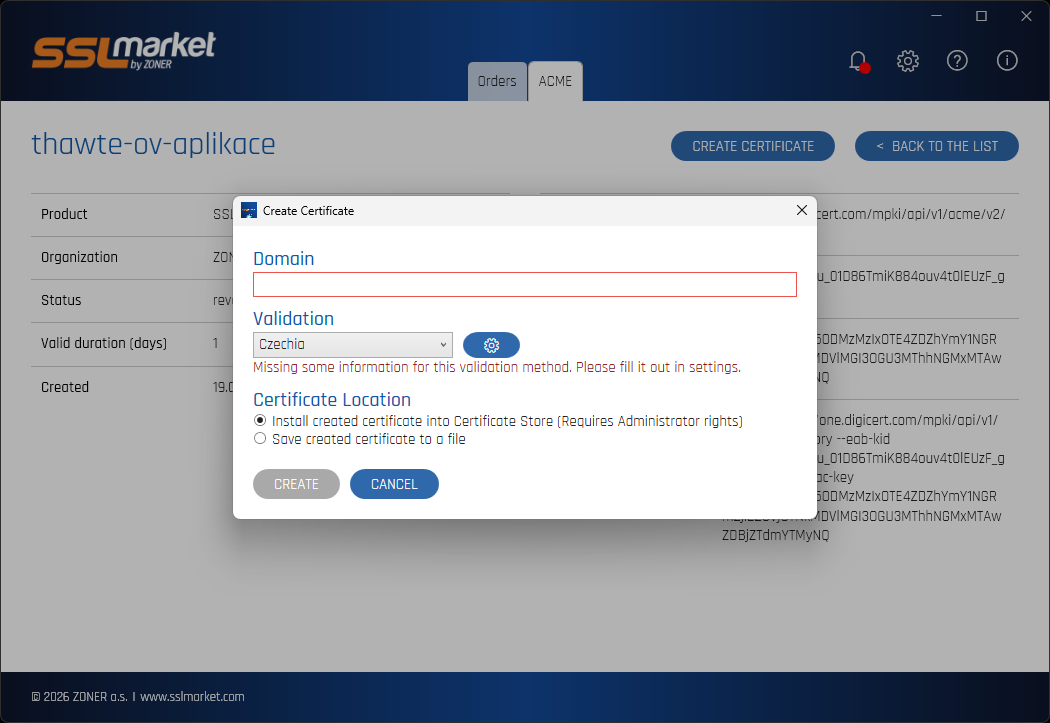
After confirming the domain name and ensuring the registrar's API key is functional, DNS DCV occurs and the certificate is issued. Then choose: save it to the Windows Certificate Store or to a PFX file protected by a chosen password.
More DNS providers will be added to the application as the simple-acme project allows. A separate help article Certificate Request via ACME and DNS in SSLmarket Application covers certificate issuance via ACME and DNS in detail.
Note: This certificate issuance option is for ad-hoc manual requests when necessary or for testing ACME. It does not replace automation or ACME directly on the server or services like DigiCert Trust Lifecycle Manager.
Updates and new versions
SSLmarket application updates automatically. If connected to the internet, it downloads the latest version and restarts. It remains current.
Contact support if necessary
Detailed help about using the application can be found directly there. It includes, among other things, an easy procedure for installing a TLS and an S/MIME certificate.
If you are not successful in working with certificates, do not hesitate to contact SSLmarket support. We will be happy to help you resolve the issue.
If you will be installing the certificate on the server, check the correct service settings and the correct installation in our TLS certificate verifier.

We are sorry that you did not find the required information here.
Please help us to improve this article. Write us what you have expected and not found out.